Appearance
Signing In and Account Setup
Memos uses a straightforward authentication system. Here's how to access your account and configure your preferences.
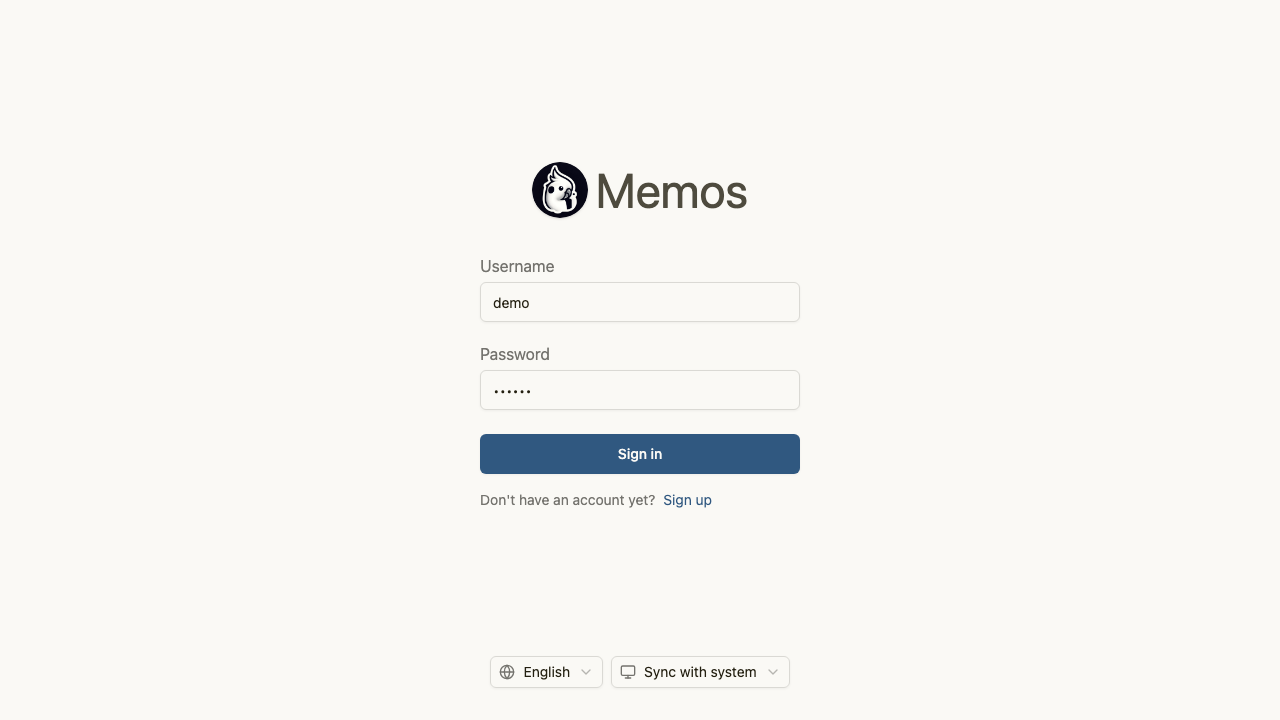
Signing In
Navigate to your Memos instance URL and you'll see the sign-in page. Enter your username and password, then click the Sign in [1] button to access your account.
If you don't have an account yet, click the Sign up [2] link below the sign-in button to create one. Registration requires a username and password. Some instances may have registration disabled by the administrator.
Language Settings
Memos supports multiple languages. On the sign-in page, click the language selector [3] at the bottom to choose your preferred language. The interface will update immediately to display all menus, labels, and system messages in your selected language.
Theme Preferences
Click the Sync with system [4] button to toggle between light mode, dark mode, or automatic system-matching mode. When set to sync, Memos follows your operating system's theme preference.
You can change the theme at any time from the settings page after signing in.
After Signing In
Once authenticated, you're taken to your home feed where you can:
- Create new memos using the editor at the top of the page
- Browse your existing memos in the timeline
- Navigate to Explore, Archived, Inbox, Attachments, or Settings using the left sidebar
- Filter content by date using the calendar widget or by topic using tags
Security Notes
- Memos stores passwords securely using bcrypt hashing
- Sessions persist until you log out or the session expires
- For self-hosted instances, administrators can configure additional authentication methods including SSO