Appearance
Working with Markdown
Memos uses Markdown as its primary formatting language. Every memo supports full Markdown syntax, giving you rich text formatting without a complex editor.
Supported Syntax
Memos supports standard Markdown plus several extensions:
Text Formatting
- Bold with
**text** - Italic with
*text* Strikethroughwith~~text~~Inline codewith backticks
Headings
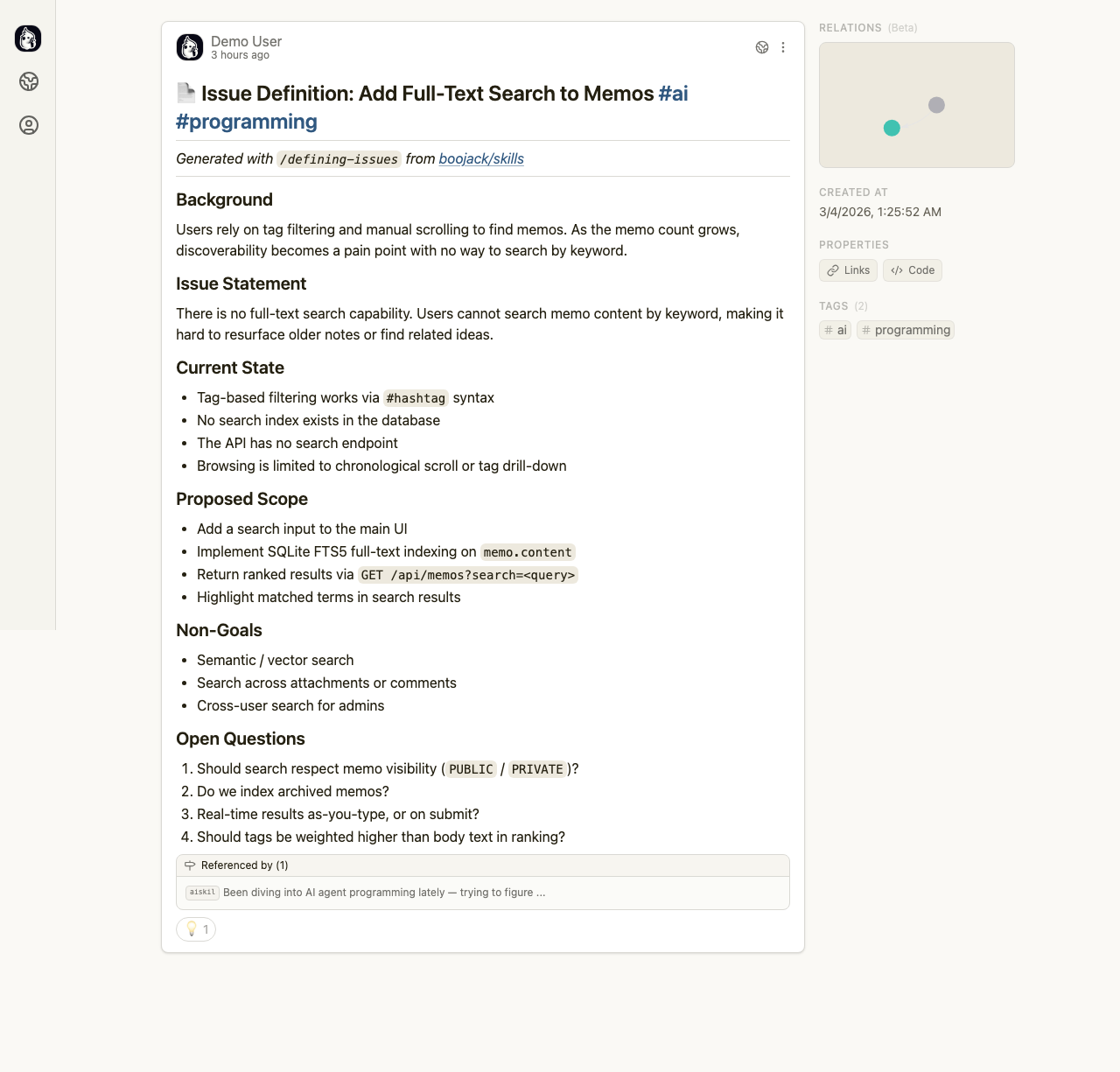
Use #, ##, and ### for heading levels. The memo detail view renders these as visually distinct sections, as shown in the screenshot where Background [3], Issue Statement [4], and Proposed Scope [5] appear as clear section headers.
Lists
- Unordered lists with
-or* - Ordered lists with
1.,2., etc. - Task lists with
- [ ]and- [x]
Code Blocks
Fenced code blocks with triple backticks support syntax highlighting. Specify the language after the opening backticks for colored syntax:
```python
def hello():
    print("Hello from Memos")
```
Links and References
- Standard links:
[text](url) - Repository references that render as clickable badges (visible in the boojack/skills reference in the screenshot)
- Auto-linking of URLs
Embedded Content
- Images with
 - Tables with pipe syntax
- Blockquotes with
>
Tags in Markdown
Hashtags like #programming or #ai placed anywhere in your memo content become interactive tags. They appear as clickable links in the rendered output and are indexed for filtering.
Writing Tips
- Use headings to structure longer memos into scannable sections
- Place tags at the end of the first line or the memo title for visibility
- Preview your memo before publishing to check formatting
- Code blocks with language tags render with syntax highlighting, making technical notes more readable